
AI Agent Monitoring: Metrics For CRM Workflows
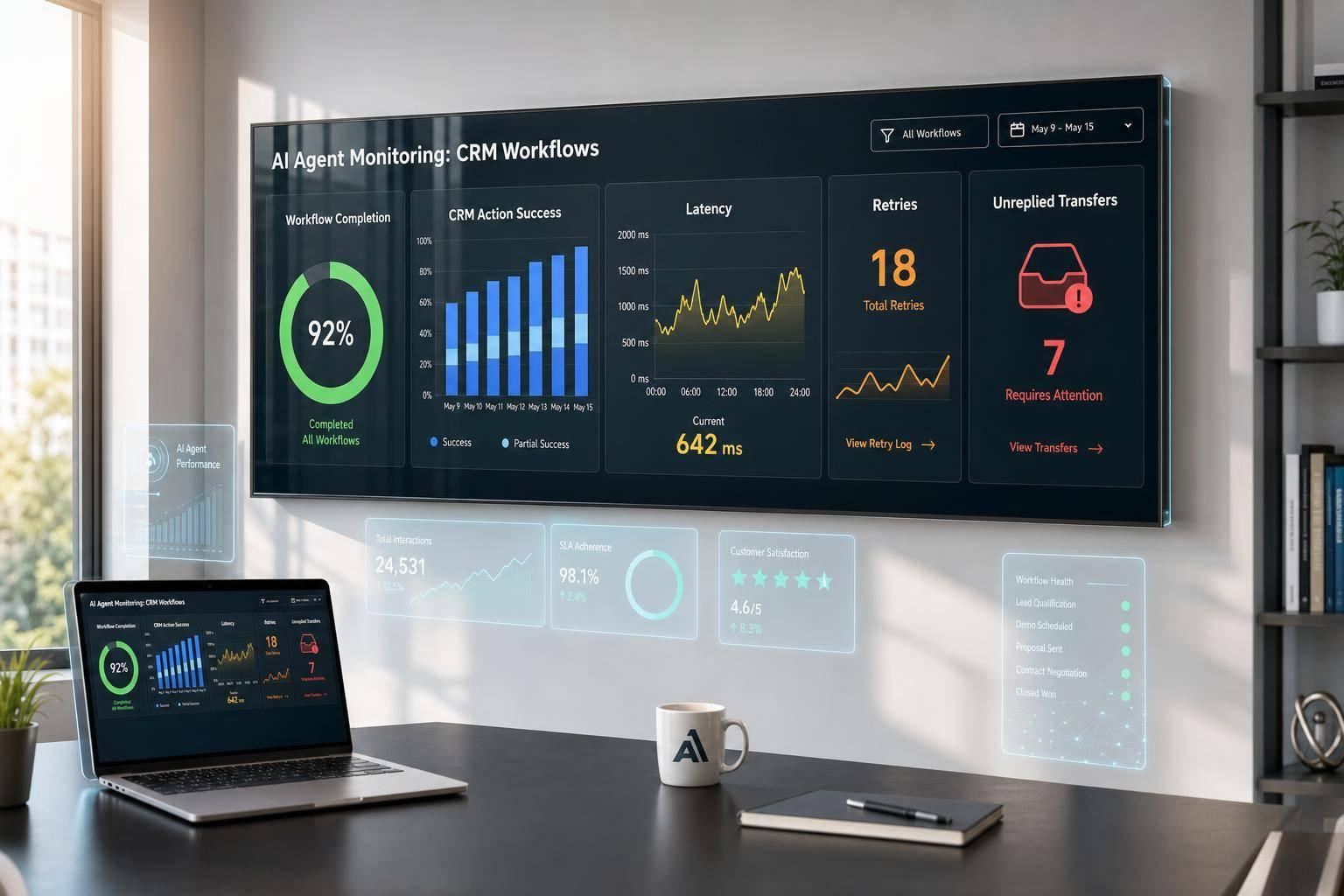
If your AI agent replies fast but fails to update the CRM, the workflow failed. That’s the main point.
I’d track AI agent performance in CRM workflows with a small set of metrics that show whether the job got done, whether the handoff worked, and whether customers were left waiting. In plain terms, I’d look at:
- Workflow completion
- CRM action success
- Tool/API accuracy
- Latency by percentile
- Retry rate and step count
- Cost per workflow
- Handoff rate and time to handoff
- Unreplied transferred messages
- Post-handoff resolution time
- Repeat contact rate
- Closed vs. open conversations
- Reassignment and unassigned conversation counts
Here’s the short version: uptime is only the starting point. An AI agent can be available 99%+ of the time and still fail by writing bad CRM data, missing a webhook, looping through retries, or sending a customer to a human without the chat history.
I’d also treat unreplied messages after AI-to-human transfer as one of the top warning signs. That matters more than unread messages, because unread messages may not need action at all.
A simple way to think about it:
- Completion = did the agent finish the flow?
- Success = did the CRM or system action happen?
- Accuracy = was the action correct?
- Handoff quality = did the human get enough context to solve it?
- Outcome = did the case close without more work later?
| Area | What I’d check | What a bad signal looks like |
|---|---|---|
| Workflow performance | Completion, success, accuracy, retries, latency, cost | Fast replies but failed CRM writes |
| Handoff quality | Handoff rate, time to handoff, unreplied transfers | Chats sit after transfer with no human reply |
| Customer results | Resolution status, repeat contact, reassignment | “Closed” cases that reopen in a new conversation |
| Reporting | By workflow, channel, workspace, escalation path | One strong channel hides weak results elsewhere |
If I were setting this up today, on Aug. 28, 2026, I’d start with workflow metrics first, then check handoff quality, then tie those numbers to closed conversations and human workload. That gives me a clear view of whether the AI is doing work - or just moving work around.
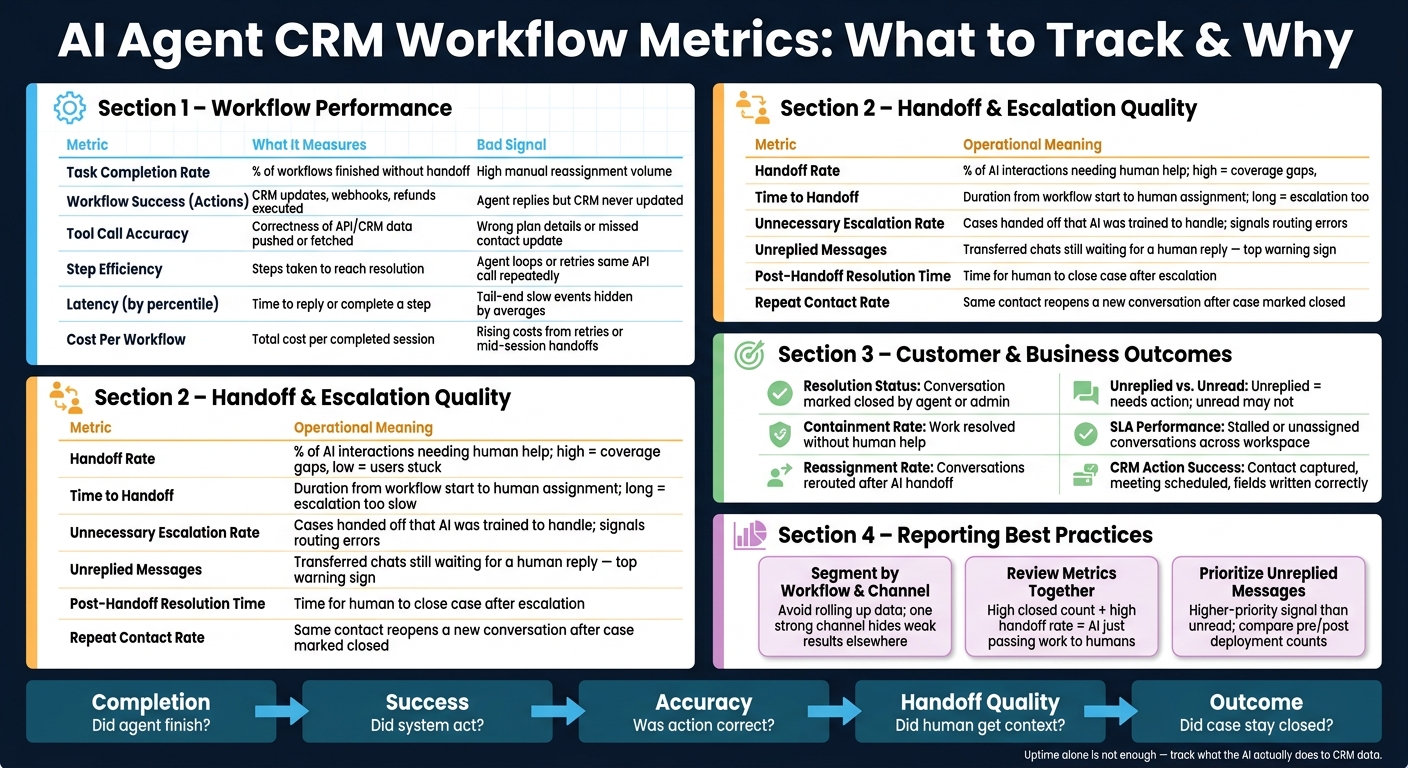
AI Agent CRM Workflow Metrics: What to Track & Why
4 Metrics Every AI Agent Project Needs Before Launch
sbb-itb-e1b05dc
Core metrics for CRM workflow performance
Track whether the agent completes the CRM action, uses the right tools, and keeps records clean. These are the baseline metrics to watch before you judge handoff quality.
Task completion, workflow success, and tool accuracy
Track task completion, workflow success, and tool call accuracy as a group. Each one tells a different part of the story.
Completion shows whether the agent finished the workflow from start to finish without a handoff. Success shows whether the intended CRM action actually happened. Accuracy shows whether the API call or CRM write was correct. That split matters. An agent can sound helpful in chat and still fail the actual job behind the scenes.
| Metric | What It Measures | Why It Matters in CRM Workflows | What a Poor Signal Looks Like |
|---|---|---|---|
| Task Completion Rate | Percentage of workflows finished without handoff [2] | Indicates whether the AI can handle end-to-end CRM tasks autonomously | High volume of conversations requiring manual reassignment [2] |
| Workflow Success (Actions) | Successful execution of API-driven actions such as CRM updates, plan fetches, or refunds [2] | Shows whether the AI is producing the intended operational outcome, not just replying | The agent answers the question but fails to update the CRM or trigger the webhook [2] |
| Tool Call Accuracy | Correctness of data fetched from or pushed to internal APIs and CRMs [2] | Ensures CRM data integrity and prevents errors in customer records or billing | The AI retrieves incorrect plan details or fails to update contact info [2] |
| Step Efficiency | Number of steps taken to reach a resolution [2] | Directly affects workflow cost and resolution speed | The agent enters a loop or requires multiple retries to fetch a single piece of data [2] |
| Latency (Response Time) | Time taken for the AI to generate a response or execute a workflow step [2] | Higher latency can lead to customer drop-off in real-time channels like WhatsApp or web chat | Long delays in "instant" chat environments that averages do not show [2] |
| Cost Per Workflow | Total cost to complete one workflow session | Makes efficiency tradeoffs visible at scale | Costs rise because the workflow needs repeated retries, unnecessary tool calls, or a handoff mid-session |
A simple way to think about it: completion asks, Did the agent finish? Success asks, Did the system do the job? Accuracy asks, Did it do the job correctly?
Latency, step efficiency, and retry behavior
Latency is the time the agent takes to reply or complete a step. In real-time channels like web chat or WhatsApp, delays can push people to leave before the workflow finishes. That’s why averages don’t tell the whole story. Track latency by percentile so you can spot slow tail events that hurt the user experience.
Step efficiency matters just as much. If the agent needs too many steps to get to the answer, the workflow gets slower and more expensive. A common failure pattern is looping through the same API call again and again before it finally works.
High retry rates on tool calls are one of the clearest early warning signs that something is off. It could be a broken integration, bad input handling, weak routing, or a setup issue in the workflow itself.
Cost per workflow and model efficiency
Every AI workflow has a price tag, and cost per workflow makes that plain. Use it to track tradeoffs tied to retries, extra tool calls, and handoffs. If one workflow costs more than another, that may be fine - but only if it completes the CRM action reliably and cuts down on manual cleanup.
Once completion and accuracy are stable, measure how escalations affect context and resolution.
Handoff and escalation quality
After completion, accuracy, and cost, the next thing to check is simple: does unresolved work move cleanly to a human? That makes handoff quality its own measurement layer, not just a support ops footnote.
| Handoff Metric | Operational Meaning |
|---|---|
| Handoff Rate | Percentage of AI interactions that need human help. A high rate can point to coverage gaps. A low rate can mean users are getting stuck. |
| Time to Handoff | Time from the start of a workflow until a human is assigned. Long delays mean escalation is taking too long. |
| Unnecessary Escalation Rate | How often cases are handed off even though the AI is trained to handle them. This often points to routing errors or confidence thresholds that are too sensitive. |
| Unreplied Messages | Transferred chats still waiting for a human reply. |
| Post-Handoff Resolution Time | Time a human takes to close a case after escalation. |
| Repeat Contact Rate | How often the same contact starts a new conversation ID after a case was marked "closed." |
Handoff rate, time to handoff, and unnecessary escalations
A healthy handoff rate depends on how the workflow is built and how much the AI knows. If the rate is high, the AI is usually running into gaps: missing product details, fuzzy routing rules, or confidence thresholds that fire too easily. If the rate is low, that isn't always good news. It can mean people are being kept in the AI flow when they should have been moved to a human.
Time to handoff is where customers start to feel the problem. If the AI goes in circles or pauses too long before escalating, the customer waits longer than needed. That's frustrating, and it often feels avoidable.
Unnecessary escalations create a different kind of drag. When the AI sends over cases it could have handled on its own, it burns human bandwidth and usually signals a routing issue or a gap in the knowledge setup.
Context preservation and post-handoff resolution
What the human agent receives has a direct effect on how fast the case gets solved. If the agent has to ask the customer to repeat account details or explain the issue all over again, the handoff has already gone off the rails.
When an escalation is triggered, the receiving human agent gets the full message history, customer metadata, and AI reasoning context [1][2]. Private notes visible only to the team can document why the AI escalated, helping the human agent understand the transition [1]. That continuity matters across channels too, so a conversation can start in web chat and continue in WhatsApp under a single referenceable conversation ID [1]. Converso also tracks unreplied messages transferred from AI to human that are still waiting for a response [1].
Fast human closure and a low repeat contact rate are good signs that the transfer kept the right context in place. If resolution times stay long, or the same contact keeps coming back after the case was closed, the issue usually starts at the moment of transfer - when key context was missing or incomplete.
Customer and business outcome metrics
Operational metrics tell you how the AI is running day to day. Outcome metrics tell you whether it’s doing work that helps customers and the business.
That difference matters. A workflow can look smooth on paper and still leave conversations hanging or dump extra work on human agents. Once the mechanics are stable, the next step is simple: check whether those workflows improve customer results and cut down human workload.
Resolution, containment, and CSAT
For customer satisfaction monitoring, track unreplied messages and resolution status. Unreplied messages are a strong negative signal for customer satisfaction, while closed conversations point to completed work. Track resolution status as its own metric: a conversation is considered resolved when it is marked "closed" by an agent or admin, which separates finished tasks from interactions that are still active or were abandoned [1].
Containment shows how much work the AI resolves without human help, which lowers agent load [2].
SLA performance and CRM workflow impact
The same idea applies to queue health. Stalled or reassigned conversations usually point to friction in the workflow. Track unreplied and unassigned conversations across the workspace so active requests don’t stall [1]. Also watch reassignment rate - how often a conversation is reassigned to another inbox after AI handoff. If that number is high, it can be a sign that the workflow is creating extra steps or sending work to the wrong place [1].
For CRM workflows, success should be tied to the business action completed, not just whether the conversation was closed. In sales workflows, that means checking whether the AI captures contact details, schedules meetings, or writes the right fields to the CRM [2]. Preserved context helps the next person pick up the thread and keep the work moving.
How to set up reporting and use the metrics
Once you’ve defined your metrics, the next step is to slice the data in a way that exposes problems. If you only look at averages, weak spots can slip by unnoticed. That’s why it helps to report core metrics by workflow and channel, so one area’s good performance doesn’t cover up another area’s failures.
Segment by workflow, channel, and escalation path
Keep workflows with different success signals separate. If you lump them together, one use case can easily hide another’s failures. Start with workflow type and escalation path, then break things down by channel and workspace.
Channels need their own view too. A spike in one channel can vanish when everything is rolled into one report. The same goes for workspaces. Track each workspace on its own so one agent’s problems don’t get buried by another agent’s numbers.
Real-time dashboard tiles for unreplied messages and unassigned conversations make it easier to spot where conversations are stalling [1].
Review metrics together, not in isolation
After you segment the data, look at metrics side by side. A single healthy-looking number can hide a workflow that’s breaking underneath the surface. This happens a lot when AI handoff is part of the process.
For example, a high number of closed conversations might seem like a good sign. But compare that with the handoff rate, and you may find the AI is just passing the work to humans. On the flip side, low response times can look fine while a backlog is still growing because unreplied messages keep piling up after escalation.
A good rule of thumb: treat unreplied messages as a higher-priority signal than unread messages, since unread messages may not need action [1]. It also helps to compare open and closed counts before and after deployment, then watch unreplied counts after AI-to-human transfers so post-handoff gaps stay visible. Pre- and post-change comparisons can show whether a workflow cut unreplied messages or simply moved the bottleneck somewhere else [1].
FAQs
Which CRM metrics matter most first?
Start with your baseline metrics: First Response Time, resolution time, CSAT, agent productivity, and cost per ticket. Break them out by channel and issue type so the results are easier to act on.
For active conversations, put unreplied messages at the top of the queue. That includes new customer questions and AI-to-human transfers that still need a human reply.
Why track unreplied transfers separately?
Because they show conversations that were handed from an AI agent to a human agent and still need follow-up before they’re resolved.
Unlike unread messages, unreplied transfers need direct human action. Tracking them on their own helps stop conversations from stalling, keeps ownership clear, and supports strong service levels and customer satisfaction.
How should I segment AI workflow reports?
Segment reports by channel, issue type, complexity, region, and time of day. Then review your baseline metrics across those slices, including first response time, resolution time, CSAT, and agent productivity. That makes it much easier to spot where things slow down and where support starts to clog up.
It also helps to split AI-handled cases from human-handled ones. From there, track error rates, escalations, and complaints side by side. This gives you a clearer view of automation’s impact, shows where your knowledge base needs work, and helps protect service quality.


.svg)
.svg)
.svg)
.svg)